DevHub · Getting started
Connect an AI client
DevHub works with the AI clients you already use, such as Claude Code, Codex, Copilot and OpenCode. A client talks to DevHub over MCP. Nothing is connected until you choose it.
Connect the client
Section titled “Connect the client”- Click Connect a client in the setup wizard, on the Dashboard, or on Harnesses List in the Setup group of the sidebar.
- DevHub looks for clients on this computer and lists them in groups: “On this machine” (found by looking, still yours to choose), “Looked for, not here” and “We do not know where to look”. Click Connect next to yours.
- If the client is installed but DevHub cannot see its program, the button says Point at the binary…. A packaged app does not inherit the PATH of your shell. Run
which claude(or the name of your client) in a terminal and pick that file. - Click Test on the client in Harnesses List. DevHub shows whether it answered and which models it reports.
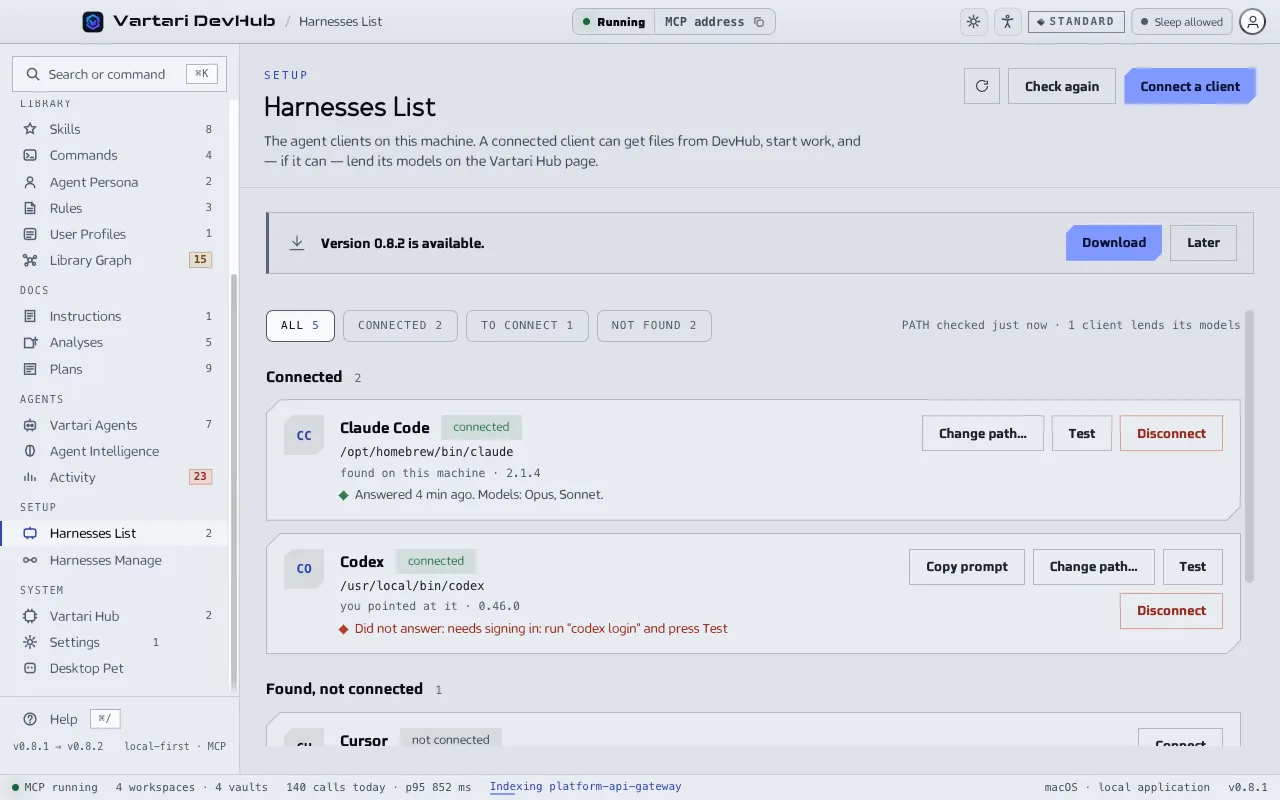
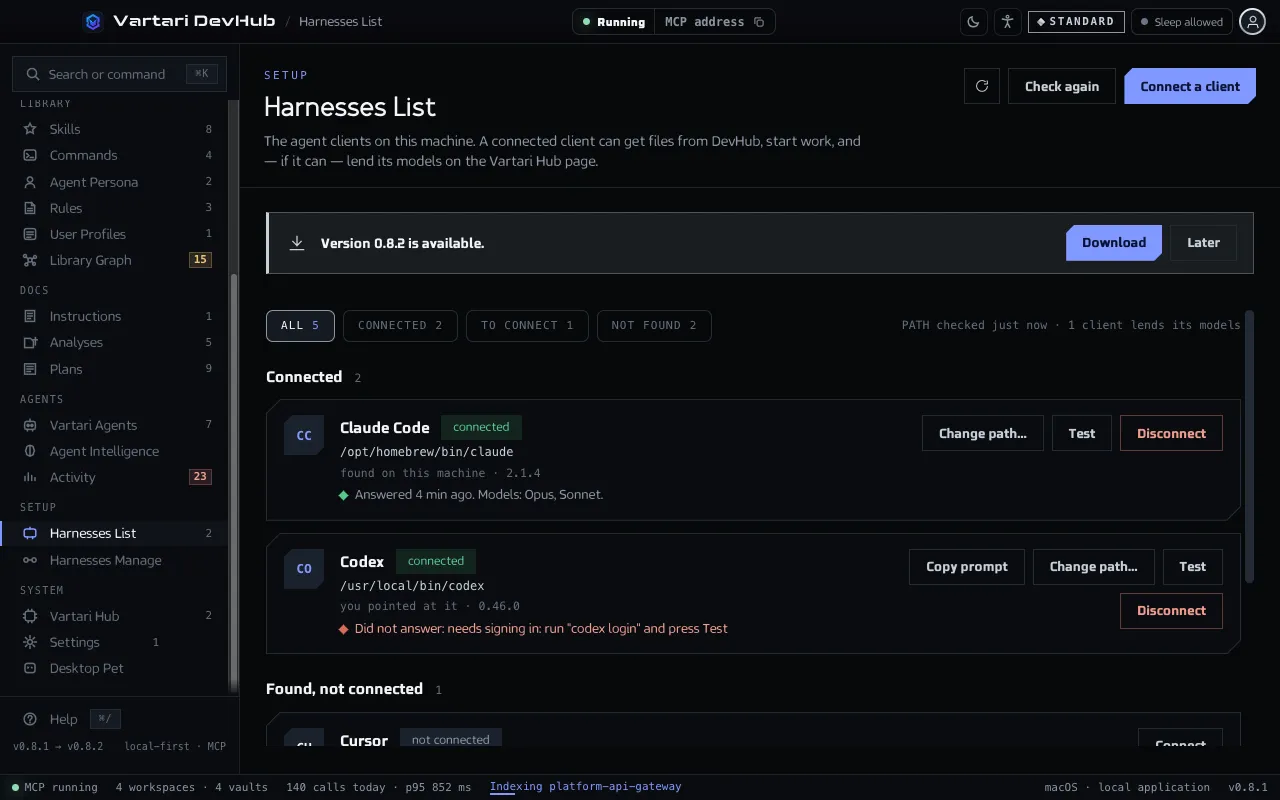
If a client says it did not answer because it needs signing in, sign in in that client’s own program and press Test again.
Set a folder up for the client
Section titled “Set a folder up for the client”Connecting tells DevHub which client you use. To let the client work with a folder, open Harnesses Manage. Click Set up a folder: DevHub writes the client’s files into the folder: instructions, the MCP configuration and the skills you choose. Start the client there and it already knows the project, the vault and which tools it may use.
Every folder set up for a terminal client (Claude Code, Codex, OpenCode, Copilot) has a Copy command button. It copies cd <folder> && <client>.
The MCP address
Section titled “The MCP address”If your client needs the address of the DevHub MCP server, copy it from the Dashboard: the MCP server card has an MCP address field with a Copy button, and the top bar shows the same. The server must be running, which needs a signed-in session.