

DevHub · Features
Accessibility
The look of DevHub is set in one section, Appearance and accessibility, with two groups: Appearance and Accessibility. The settings apply to every DevHub window at once, including the Vault Viewer and the Repository Index.
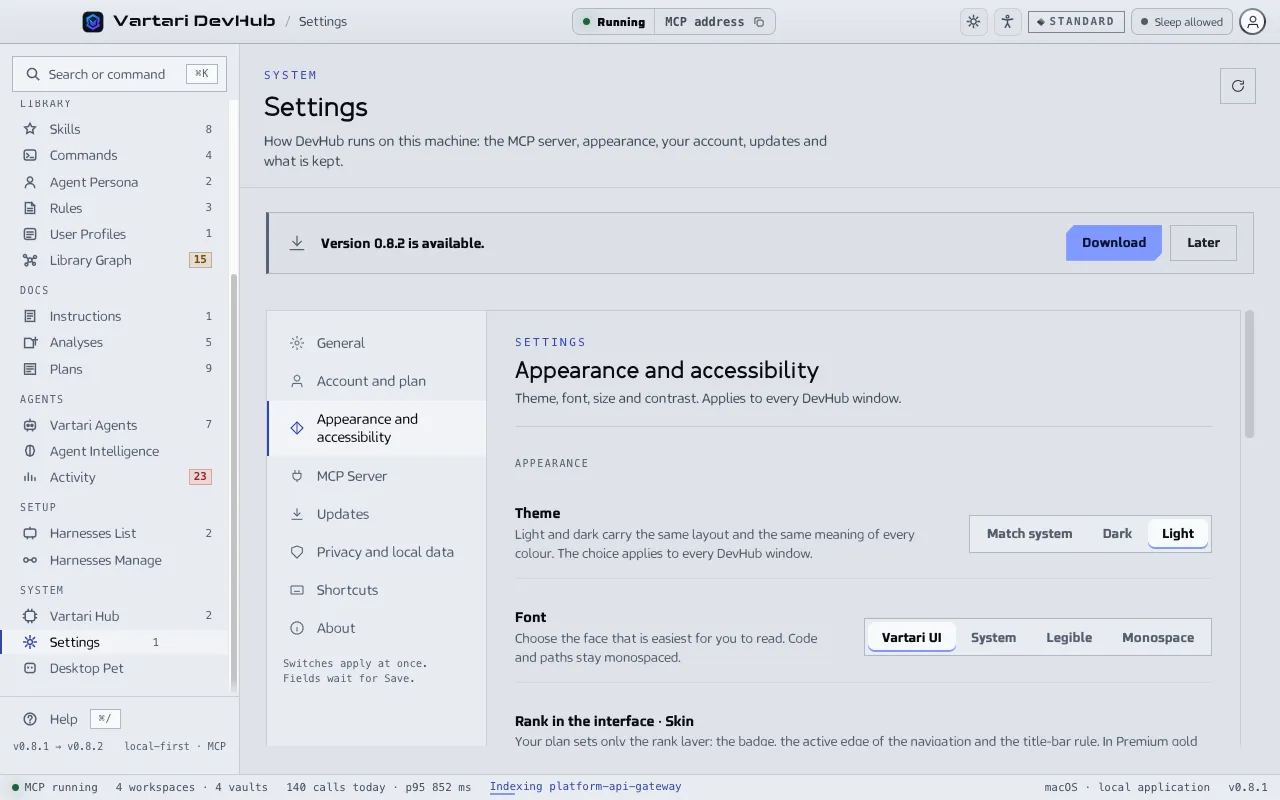
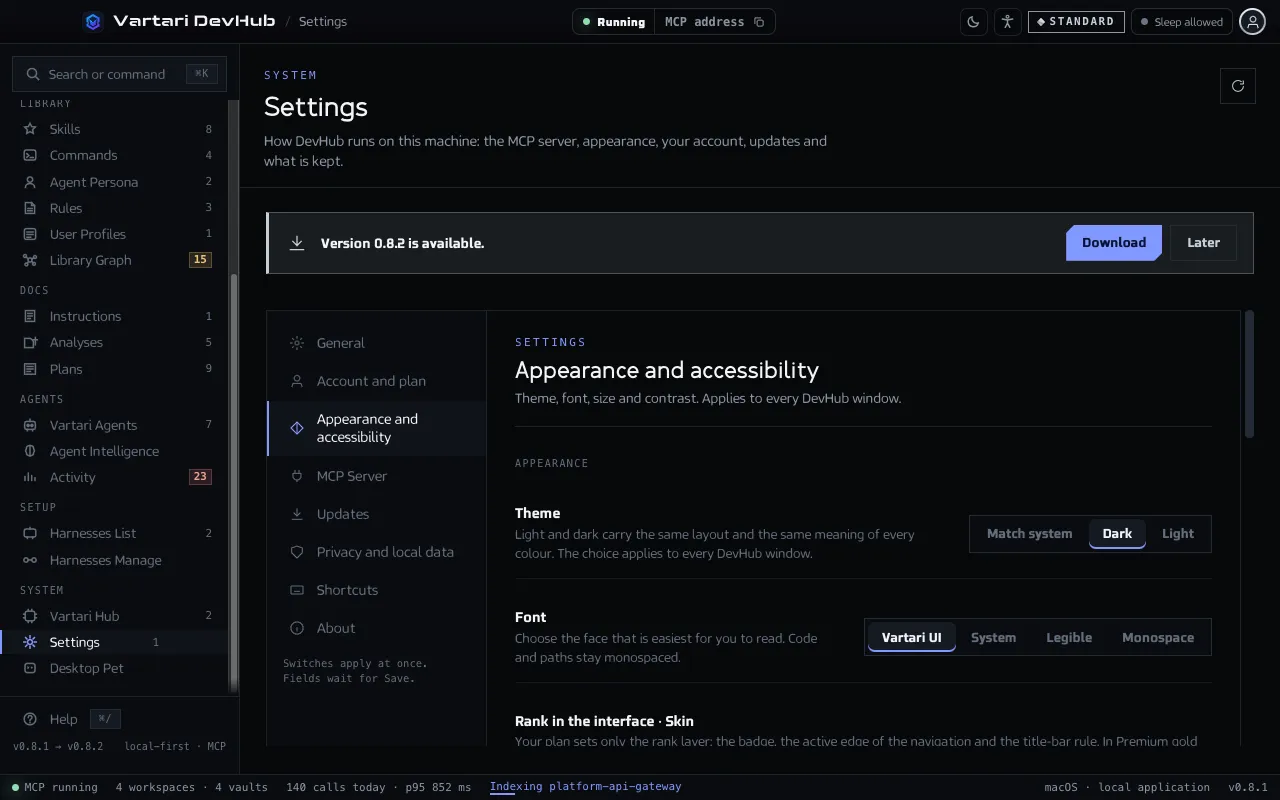
Open it
Section titled “Open it”- Click the person icon with arms spread in the top bar. It is the accessibility button. The sun or moon button next to it switches between the light and the dark theme.
- Or open Settings and choose Appearance and accessibility.
Appearance
Section titled “Appearance”- Theme: Match system, Dark or Light. Light and dark carry the same layout and the same meaning of every colour.
- Font: Vartari UI, System, Legible or Monospace. Code and paths stay monospaced.
- Skin: the plan and the mode, chosen together. The mode is Night or Day. The plan comes from your account, so you choose only the mode. See Plans and tiers.
Accessibility
Section titled “Accessibility”| Setting | What it does |
|---|---|
| Text size | Eight steps from 87.5% to 200%. ⌘ Shift + and ⌘ Shift − change it from anywhere. |
| Interface zoom | Eight steps from 80% to 200%. ⌘ + and ⌘ − change it. ⌘ ⌥ 0 resets both text size and zoom. |
| Contrast | System follows the operating system. Standard, High (quiet colours lifted a step, thicker focus ring) and Maximum (black and white with a yellow focus ring). |
| Motion | System, Full or Reduced. Reduced stops animations, graph drift and transitions. |
| Underline links | A link is then never told apart from text by colour alone. |
Reset accessibility settings brings text size, zoom, font, contrast, motion and link underlining back to the defaults. A preview box shows how the change looks. On Windows and Linux use Ctrl instead of ⌘ and Alt instead of ⌥.
Without a mouse
Section titled “Without a mouse”Every page is reachable with the keyboard. The first press of Tab offers “Skip to content”. ⌘1 to ⌘7 open the groups of the sidebar, ⌘K opens the command palette. Inside a group of choices, such as the theme, the arrow keys move between options. See Keyboard shortcuts.