

DevHub · Features
Harnesses
A harness is an AI client such as Claude Code, Codex, Copilot or OpenCode. The Setup group of the sidebar has two screens for them. Harnesses List shows the clients on this computer and which ones are connected. Harnesses Manage sets up a folder for a client: DevHub writes the files the client reads, so it already knows the project, the vault and the tools it may use when you start it there.
Harnesses List
Section titled “Harnesses List”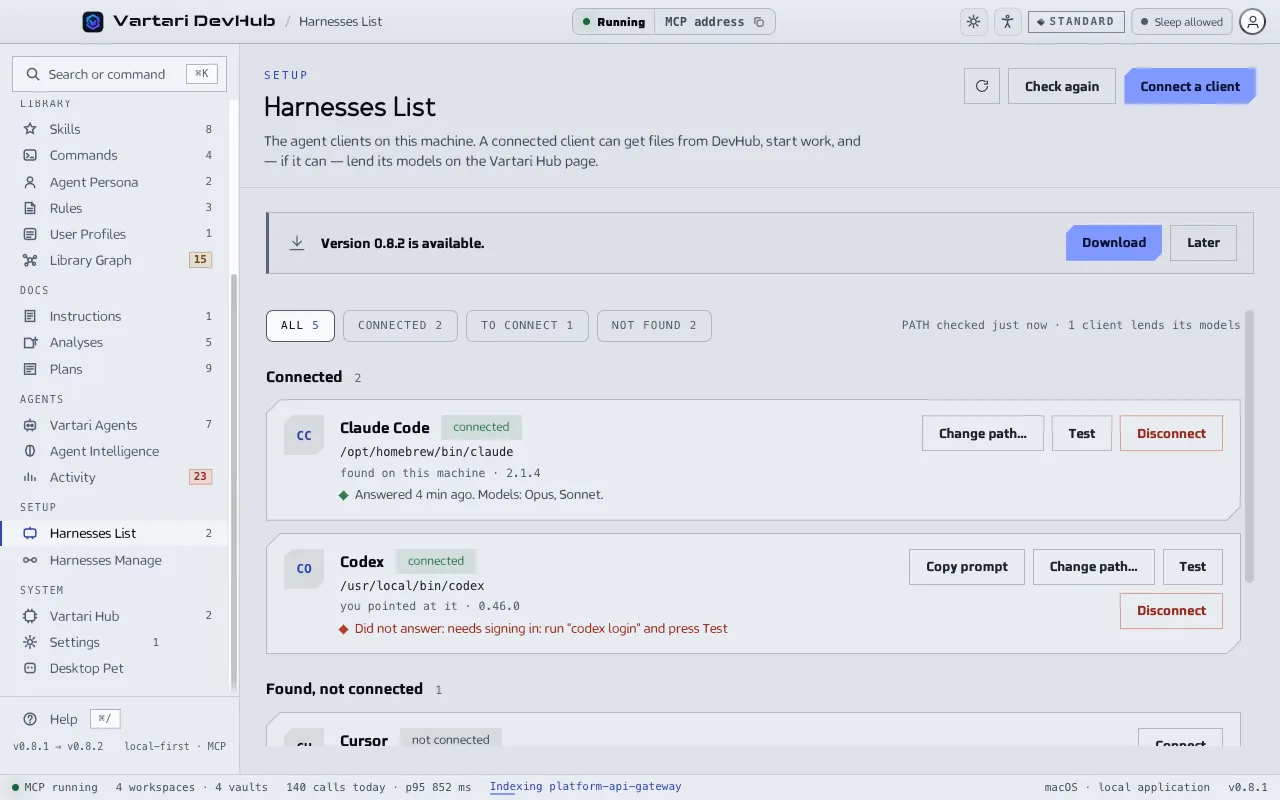
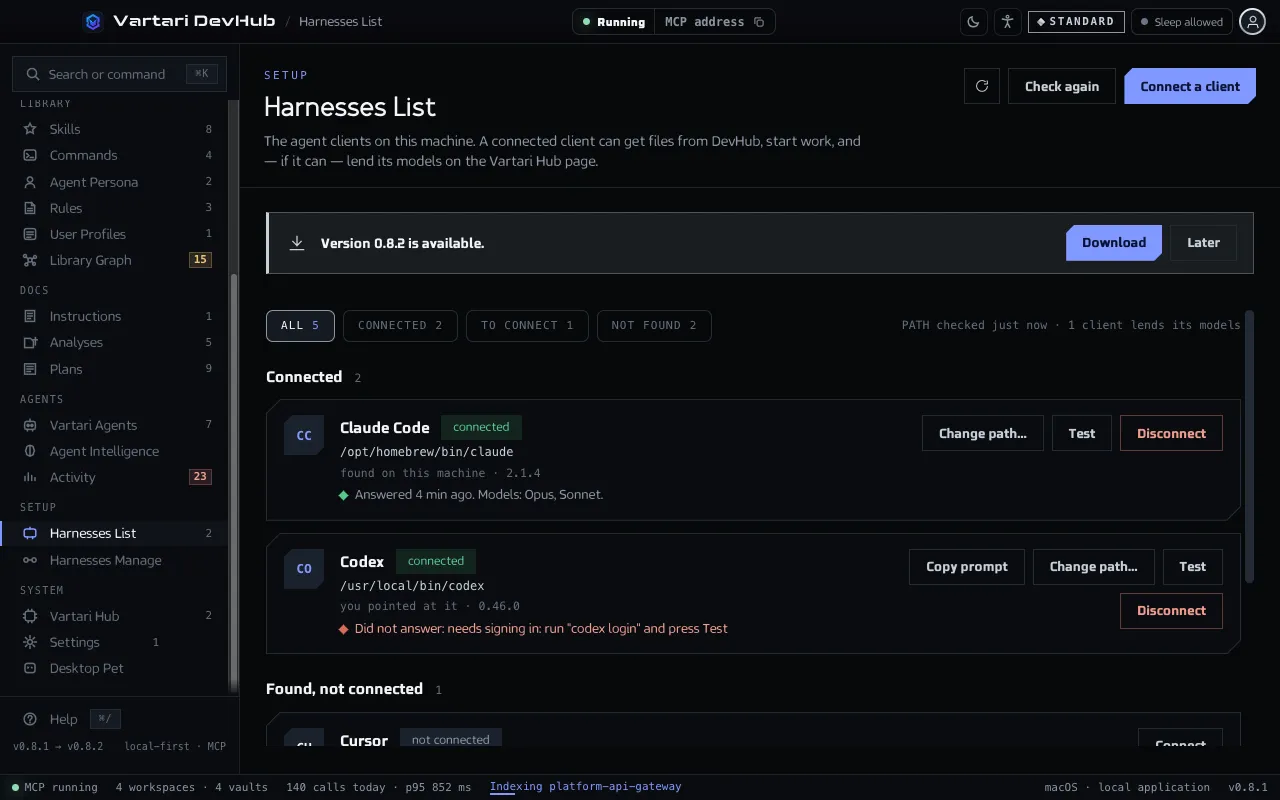
DevHub looks for clients on this computer and groups them as Connected, Found, not connected and Not found. The filters at the top are All, Connected, To connect and Not found. The line under them says when the search was last done. Click Check again to search again.
- Click Connect a client, or Connect on a client that was found. Nothing is connected until you pick it.
- If DevHub cannot see the program, click Point at the program… and choose its full path. Check and save runs it to see that it answers.
- Click Test on a connected client. The row says when it last answered and, for clients that can, which models it offers.
A packaged application does not inherit the PATH of your shell. For that reason a client you installed can show as not found. Copy prompt copies a prompt for an agent that finds the program and gives you its full path. Change path… changes the saved path and Disconnect removes the connection.
A connected client can get files from DevHub and start work, and, if it can answer as a model, lend its models on Vartari Hub. Which clients can is shown on the row.
Harnesses Manage
Section titled “Harnesses Manage”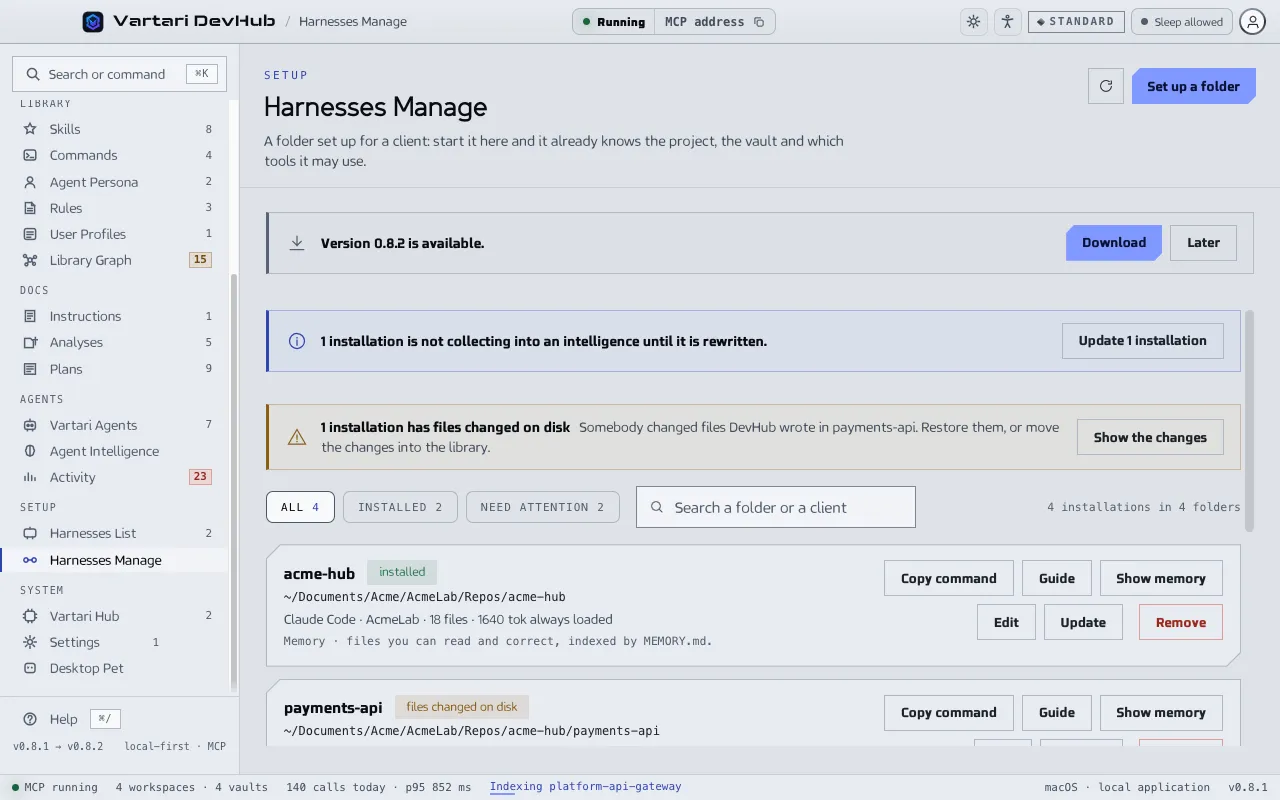
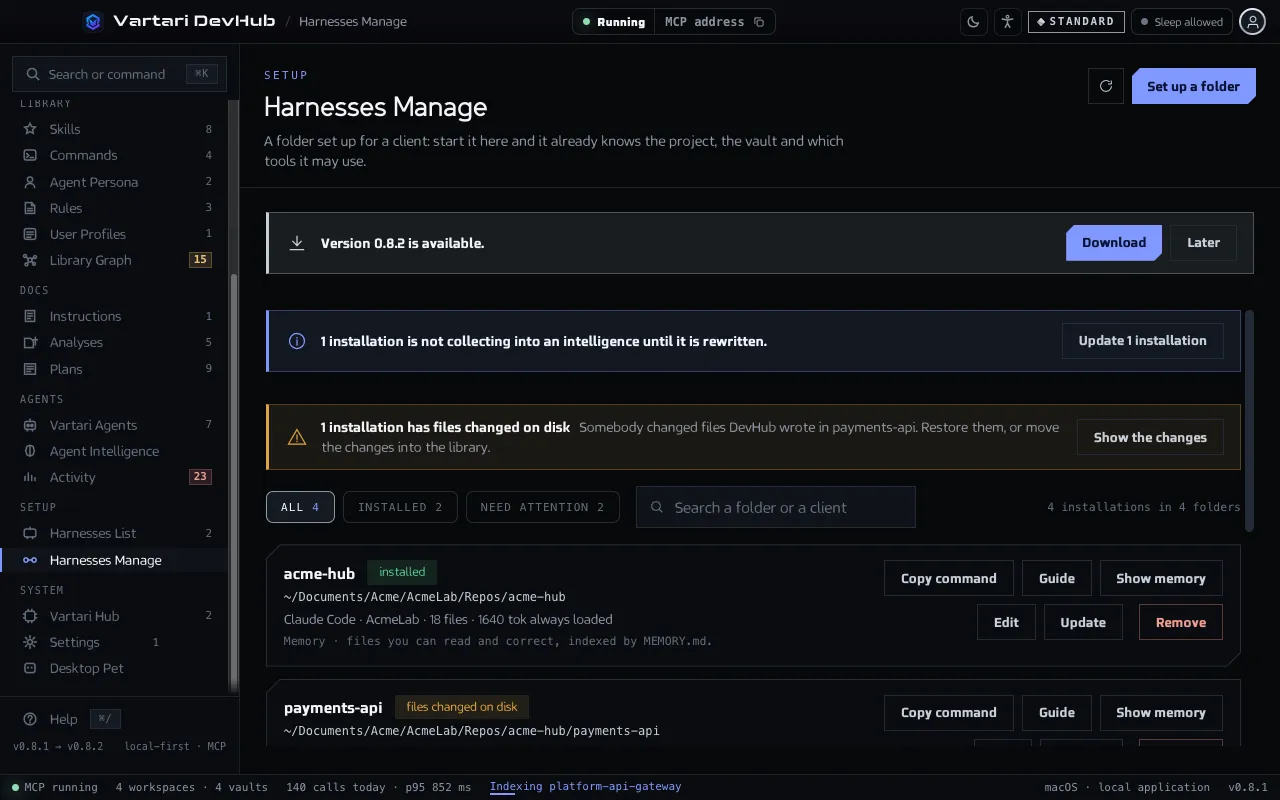
An installation is one client in one folder. One folder can hold installations of several clients, and each gets its own files.
- Click Set up a folder.
- Choose the Folder and the Harness. Add a Name and the vault the client should know.
- Choose the Instructions file, the User profile that decides which skills, rules and commands it carries, and the Agent intelligence it collects into.
- Under Accepting hooks say which hooks the client may run. The default is only the ones DevHub wrote.
- Read What will be written, then click Create and write files.
DevHub writes into the folder:
- the instructions file the client reads;
- the MCP configuration, so the client reaches DevHub. For Copilot the configuration is done in the client itself, and the dialog says so;
- the skills, rules and commands of the chosen profile;
- hooks, where the client supports them. DevHub uses them to collect what fails into Agent Intelligence.
If a file with a name DevHub would use already exists and is yours, DevHub merges its part in and never deletes the file. Removing an installation deletes only the files DevHub wrote.
On each row
Section titled “On each row”Copy command copies a command that goes to the folder and starts the client. Guide shows how DevHub talks to that client: whether its rules reach it as a file in the folder or through a hook, and whether each rule arrives. Show memory shows where the client keeps its own memory, when that is known. Edit changes the installation, and the folder and the client stay fixed. Update writes the files again. Remove deletes what DevHub wrote.
Update every installation
Section titled “Update every installation”An installation written by an older version of DevHub may miss something new, for example the address of the MCP server or the hook that collects learning. The screen then says so and offers Update N installations. It rewrites all of them and afterwards says which it updated and which it left alone. A session that is already open keeps its old address until it reconnects.
Files changed on disk
Section titled “Files changed on disk”DevHub notices when somebody changed files it wrote. The banner N installation has files changed on disk offers Show the changes. On the row, Restore discards the edits. To keep them, move them into the Library so the next update carries them. An update leaves an edited installation alone until you decide.