

DevHub · Features
Analyses
An analysis is what you do to find out where things are and how many ways there are to tackle them, before you build. It holds documents of four kinds: analysis, variant, finding and plan. Agents call it an investigation, and the tools are named investigation_*.
Analyses are kept in DevHub, not in a vault. A document can point to vault notes and open them.
When to use it
Section titled “When to use it”- You look into something before building it and want the result to survive the session.
- Several agents should read the same background and the decisions reached.
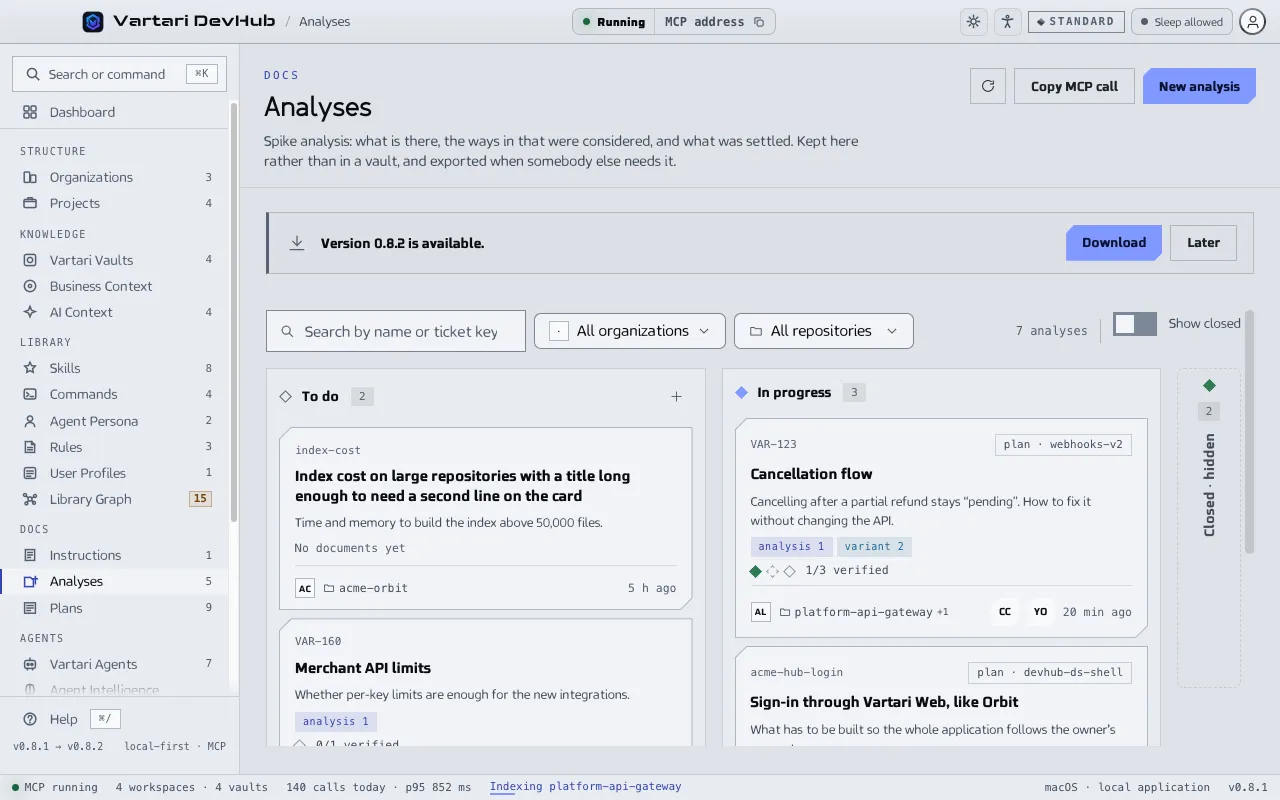
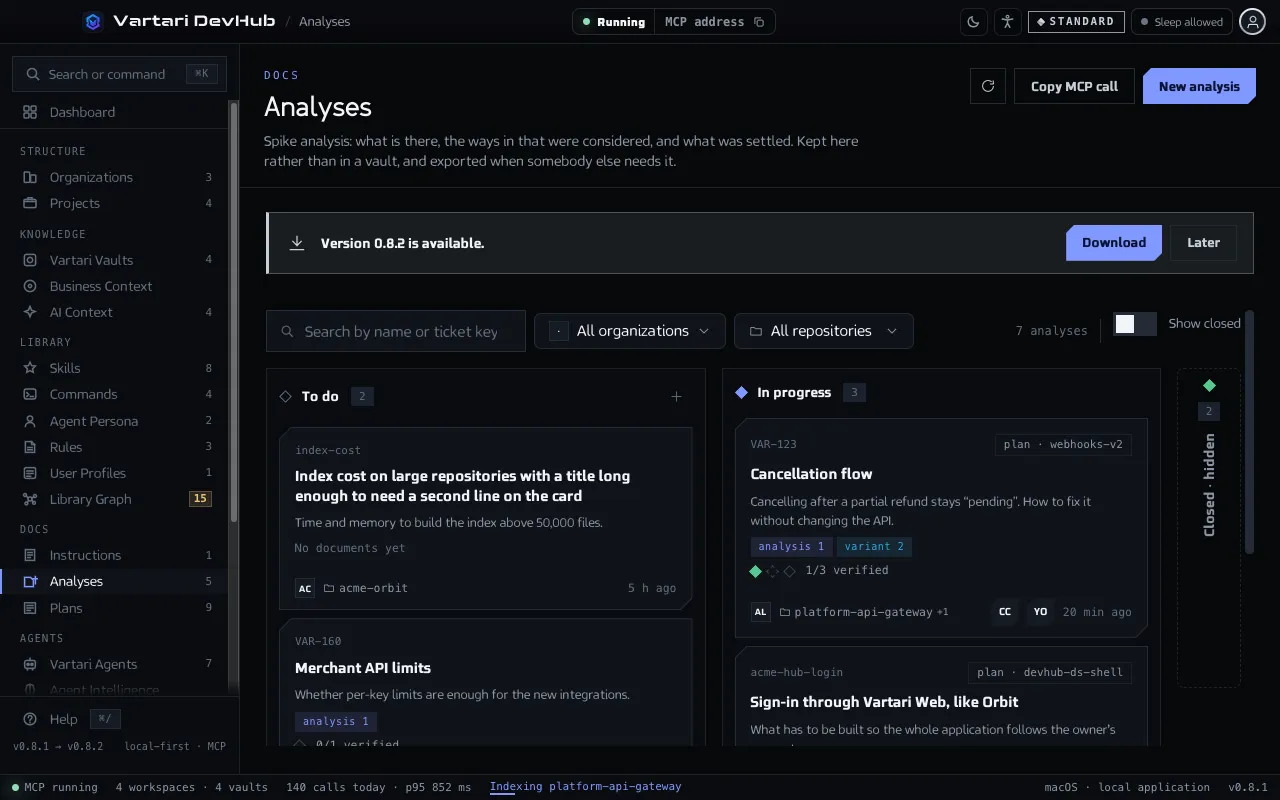
The board
Section titled “The board”Open Analyses in the Docs group of the sidebar. Cards stand in three columns: To do, In progress and Closed. Search by name or by a ticket key such as VAR-123, and filter by organization and repository. Show closed unfolds the closed ones. A card shows how many of its documents are verified and the plan made from it, if any.
Work on one
Section titled “Work on one”- Click New analysis, or the plus in the To do column.
- Click the card to open the analysis window. Use Add document to add a document, then write it, or ask an agent to expand a draft.
- Set the status of each document. The suggestions are draft, active, verified, superseded and archived; you can type your own word. It saves at once.
- When the question is settled, click Close analysis. Reopen brings it back.
The Links tab of a document lists the vault notes it points to. Open in the vault opens one.
Make a plan from it
Section titled “Make a plan from it”Create a plan from this turns the result into a plan. The card then shows the plan and its phase.
Share it
Section titled “Share it”Export saves an analysis as Markdown (.md), PDF or Word (.docx). Copy call copies the investigation_read() call for an agent. The queue icon adds the analysis to AI Context.
Remove one
Section titled “Remove one”Remove deletes the analysis and every document in it. DevHub asks first, and it cannot be undone.