

DevHub · Features
Vaults
A vault is a folder of Markdown notes that agents can read. It is attached to an organization or to one project. This is where you write down how things work and why, so that an agent can ask instead of guessing.
Two kinds of vault
Section titled “Two kinds of vault”- Organization vault: knowledge of the whole organization, such as people, access, standards, product and capabilities. Its projects inherit it.
- Repository vault: technical knowledge of one repository, such as architecture, flows, data model, integrations, configuration and verified fixes.
The name of a vault comes from the organization or project it belongs to, so you do not type one. A vault folder has a fixed structure of numbered folders, set when the vault is created.
Add a vault
Section titled “Add a vault”Open Vartari Vaults in the sidebar and click Add vault.
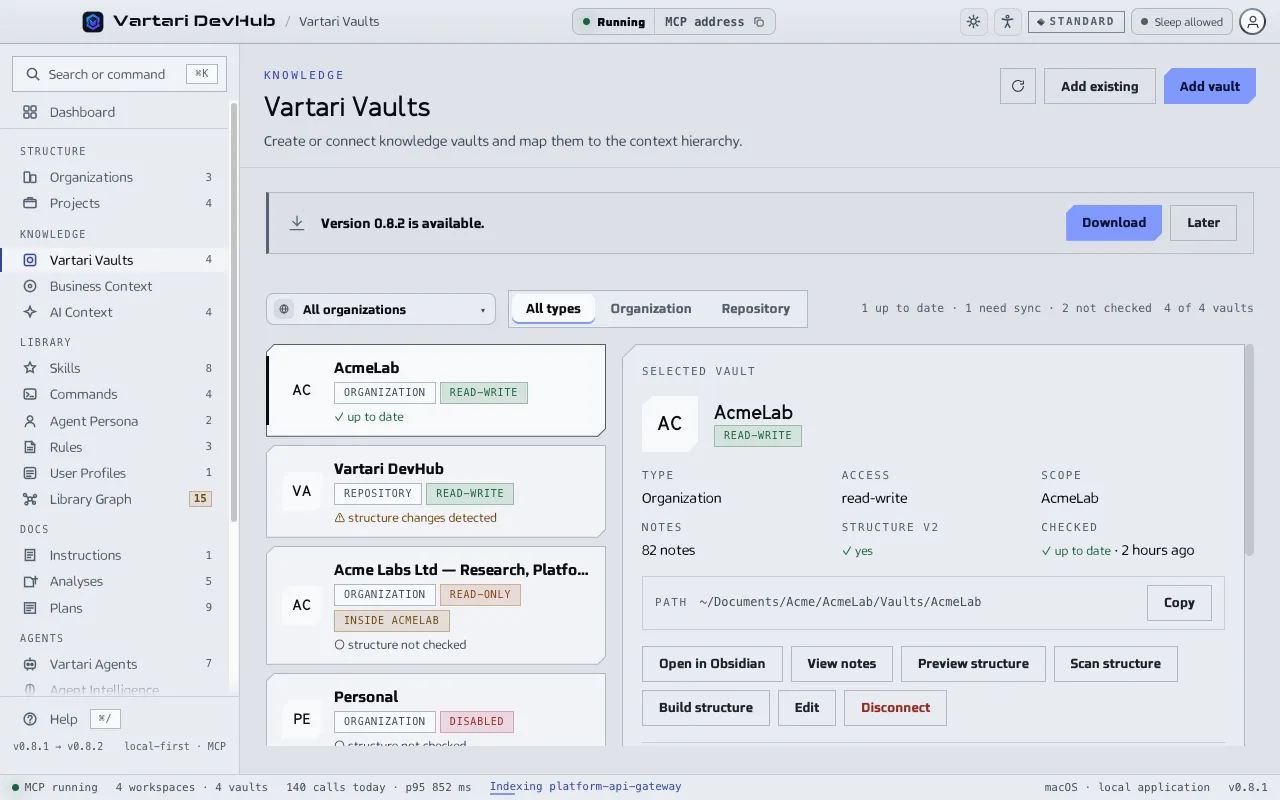
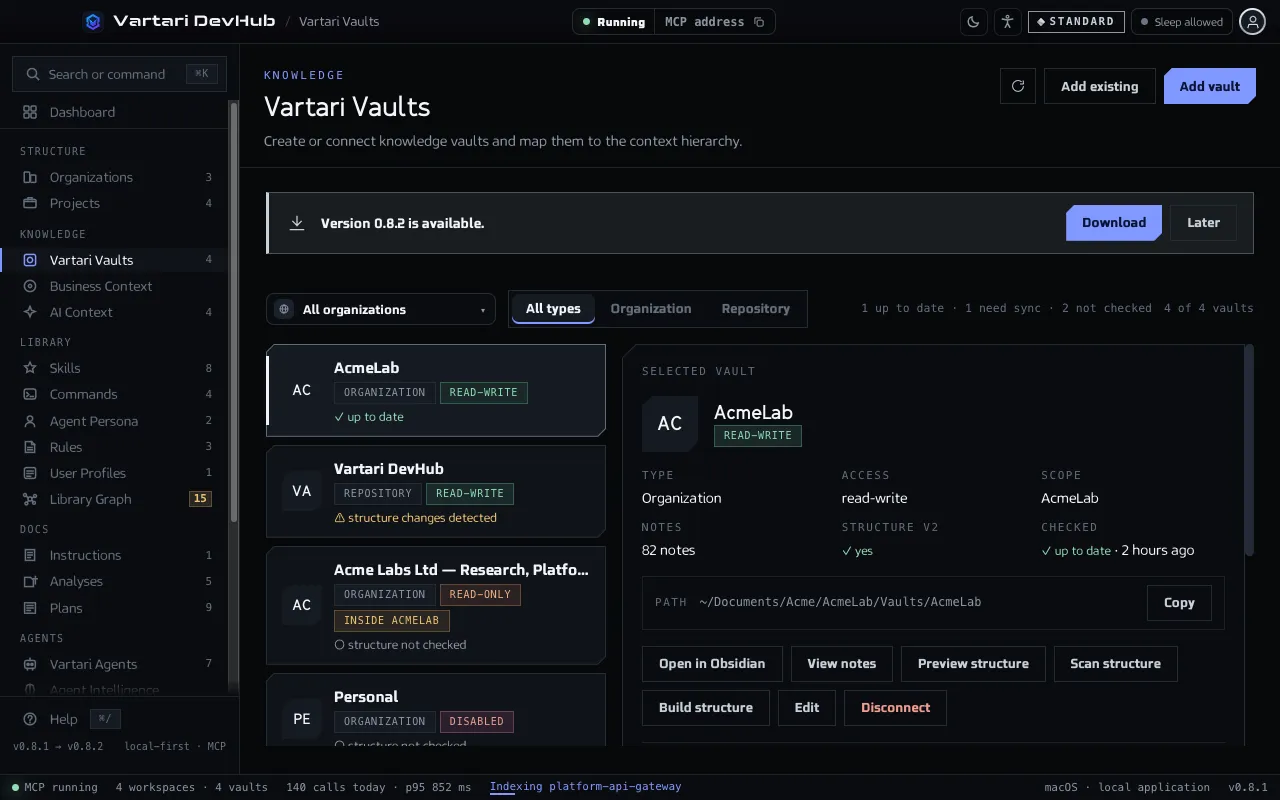
- Choose the Type: Organization or Repository, then the organization or project it belongs to.
- Choose how: Create new vault, which asks for a location and builds the structure, or Add existing vault, which takes a folder you already have, for example one you use in Obsidian.
- Set MCP access (see below) and confirm.
What agents may do: MCP access
Section titled “What agents may do: MCP access”- Read and write: agents can read notes and write them.
- Read only: agents can read but not write.
- Disabled: agents do not see the vault.
Change it with Edit. A read-only vault stays read-only in the Vault Viewer too. Since 0.8.1 agents also need a permission for vaults in your Vartari plan.
Structure
Section titled “Structure”The details panel shows whether the vault is up to date, has structure changes detected or is not checked. Scan structure compares the folders on disk with the expected ones, Preview structure shows what would be created without writing anything, and Build structure creates what is missing. Disconnect removes the vault from DevHub; the folder and its notes stay on disk.
Open a vault
Section titled “Open a vault”- View notes opens the Vault Viewer.
- Open in Obsidian opens the folder in Obsidian, if you use it. A note saved there is found by DevHub without a restart.
Two vaults can overlap on disk, one folder inside another. The list marks them “inside” or “contains”, and notes under the inner vault are indexed there, not in the outer one.